Notebook LM Guide: Fast Videos, Infographics & Slides for Repair Shops
If you run an automotive shop, mastering Notebook LM can change how you create content. Notebook LM Mastery For Repair Shops is about using a single, simple tool to turn your website, PDFs, and service pages into ready-made videos, infographics, and slide decks you can use on social, in-shop displays, and in customer outreach.
Why Notebook LM matters for repair shops
Small shops rarely have a full marketing team. Notebook LM gives you a way to produce professional assets without a designer or editor. Point it at your website or upload a PDF with service details and it quickly generates multiple content formats. That means more visibility, consistent messaging, and less time spent creating marketing materials.
Getting started: quick setup
The setup is straightforward. Sign into your Google account (Gmail or Workspace), open Notebook LM, and add your sources. Upload a PDF of your services, paste in your site URL, or add links to project pages. Notebook LM reads the material and prepares several output options in minutes.
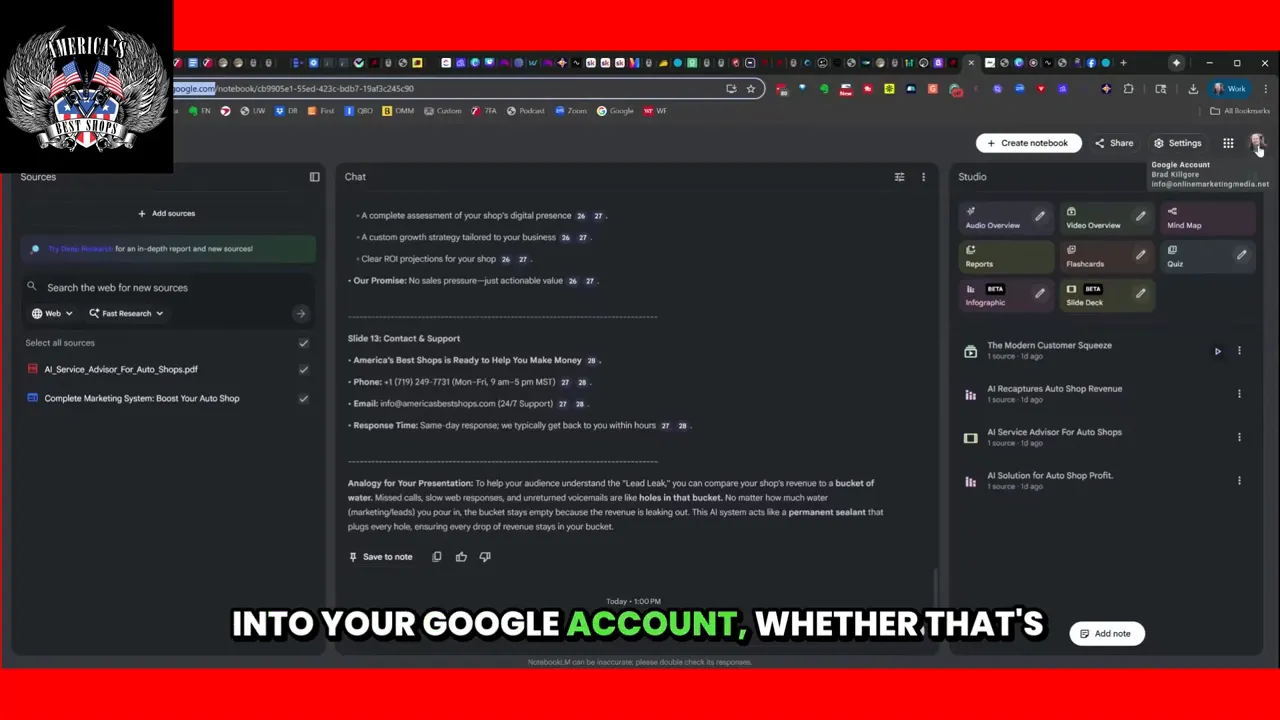
After signing in, click Add Sources to connect documents and website links. You can pull directly from Google Drive or paste URLs. The tool will list all the sources it will use to generate content.
What Notebook LM produces (and how to use each)
Notebook LM can create many content types, but the most useful for repair shops are video overviews, infographics, and slide decks. Each format solves a different need.
Video overviews
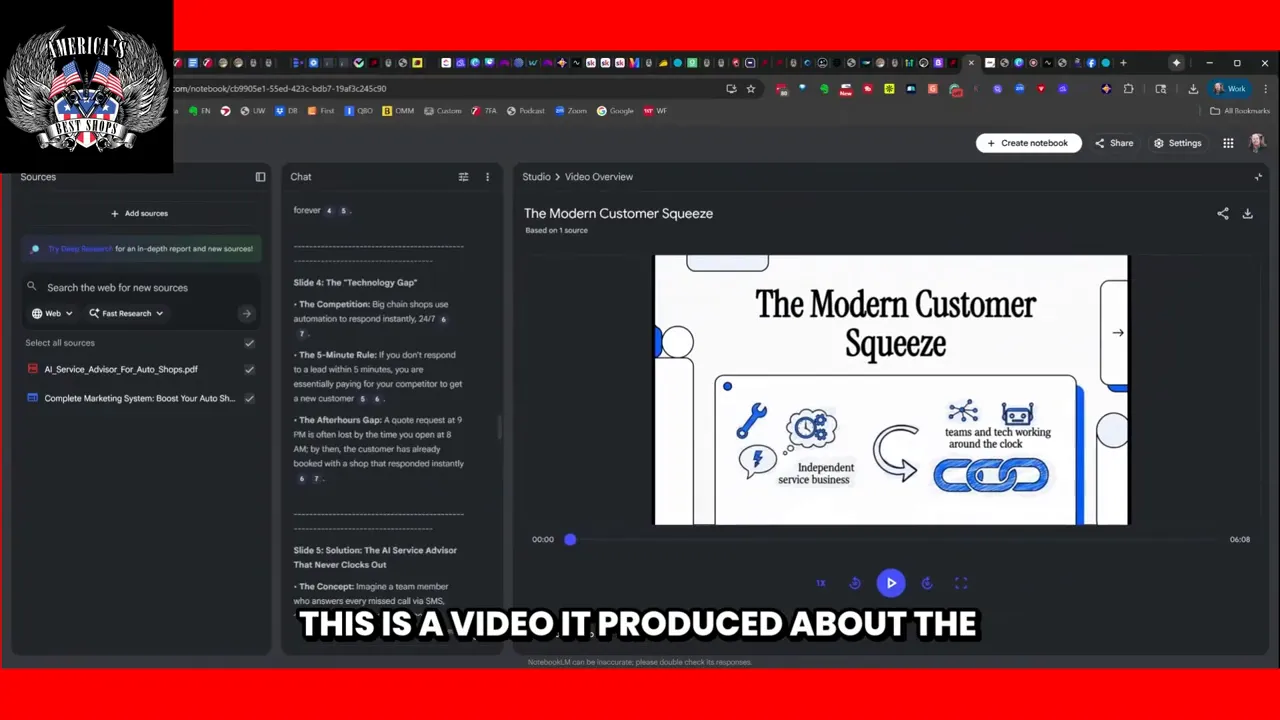
The video overview is a quick, narrated summary of your services or shop story. Use it on YouTube, Facebook, or embed it on your website. If you want a service-specific video, include the URL for that service page as a source.
Infographics
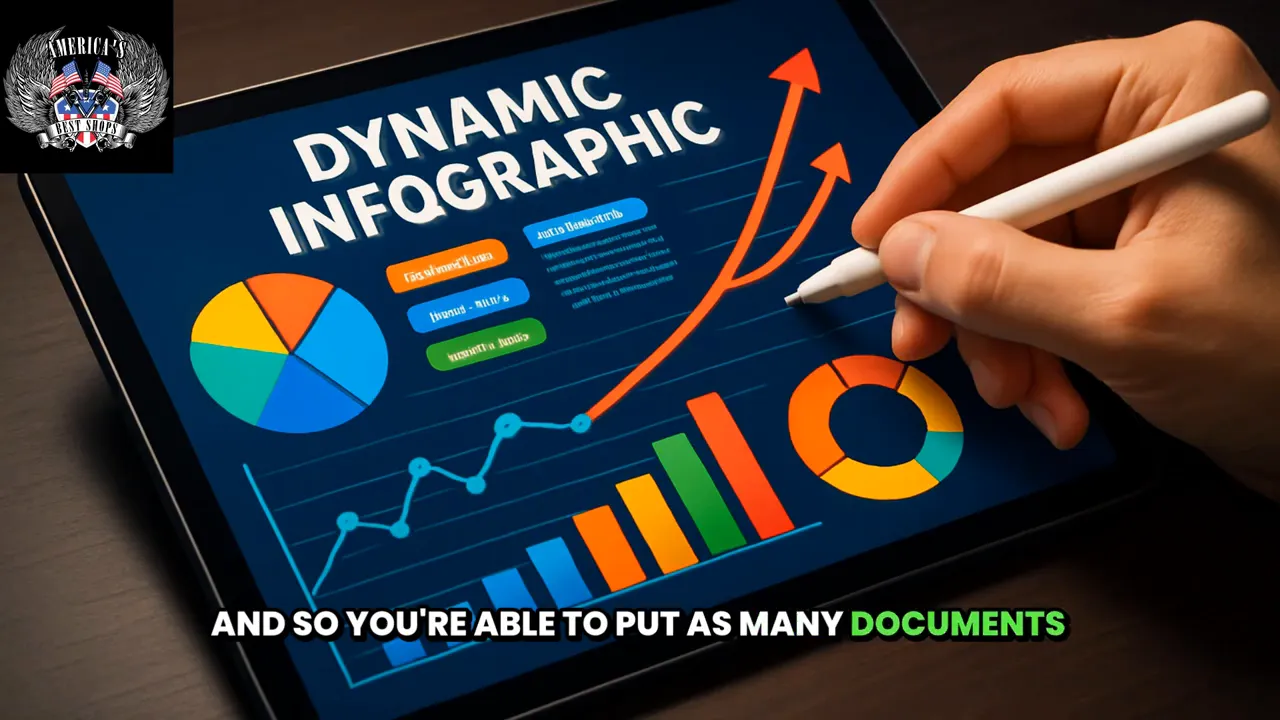
Infographics are perfect for social posts, printed flyers, or screen shares. Notebook LM distills website content into concise visuals and bullets. That gives you evergreen social content you can repurpose across platforms.
Slide decks
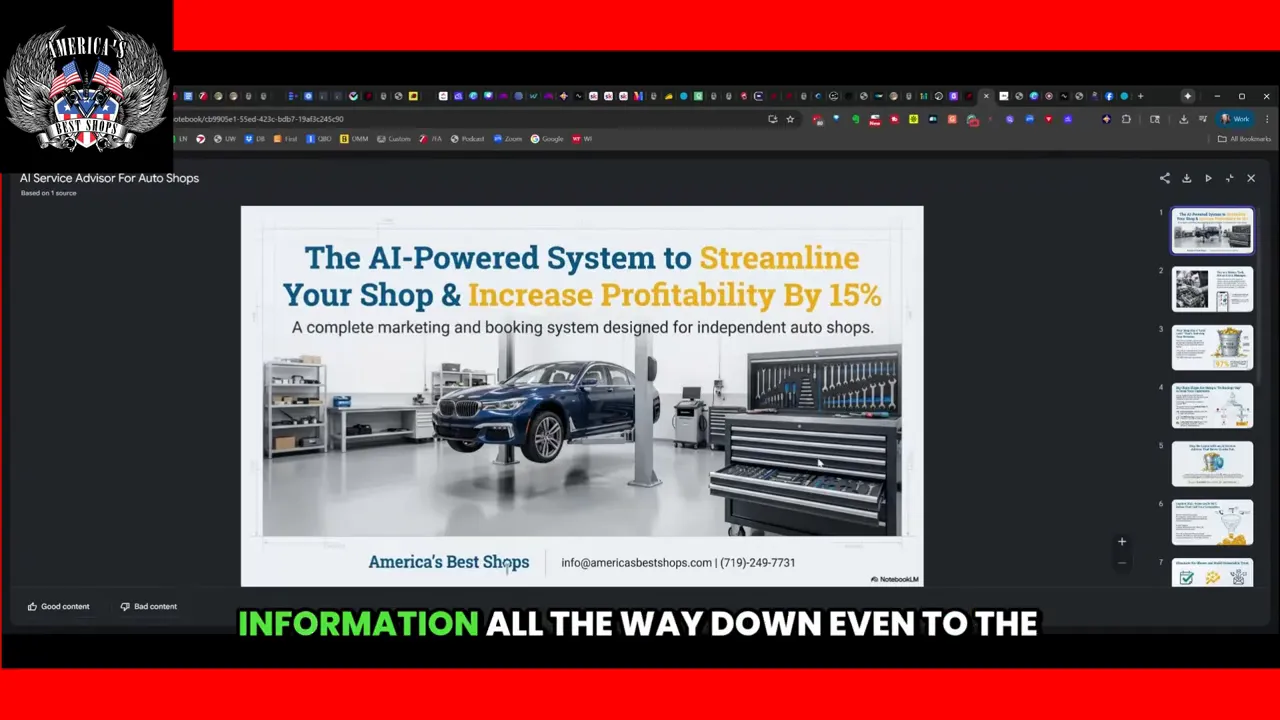
Slide decks are ideal for in-shop TVs, customer waiting areas, training new technicians, or building a quick presentation for a local networking event. Notebook LM even pulls contact info and phone numbers into slides so your calls to action are ready to go.
Practical workflow for a busy shop
- Collect sources: service pages, pricing PDF, before-and-after project pages.
- Upload or link: add them to Notebook LM via Add Sources.
- Choose outputs: select video overview, infographic, or slide deck.
- Edit and brand: export and fine-tune in your favorite editor to remove Notebook LM branding and match your shop colors.
- Publish and repurpose: use the infographic for a post, convert slides into a shop loop on TV, and upload the video to YouTube with local keywords.
Tips to get better results
- Be specific with sources: the more targeted the page (service or project), the more focused the output.
- Edit exported content: Notebook LM does most of the heavy lifting but small edits improve accuracy and tone.
- Use multiple formats: turn one service page into a video, an infographic, and a slide deck for maximum reach.
- Remove branding when needed: files include Notebook LM branding; use other tools to customize before public use.
Common uses that get results
- In-shop TV loops promoting services and offers
- Social posts and ads built from infographics
- Training decks for technicians and staff
- Email attachments and downloads for customers
Limitations to keep in mind
Notebook LM is fast and intuitive, but not perfect. It can miss details or include phrasing you want changed. Always review and edit outputs, especially technical content like service specifics or pricing. Use additional design tools if you want fully branded graphics.
Notebook LM FAQ: Free Access, Supported Files & Branding
Do I need a paid Google Workspace account to use Notebook LM?
No. Notebook LM has a free version. You just need to be signed into a Google account. Paid Workspace can offer additional features, but it is not required to get started.
What types of files can I add as sources?
You can add website URLs, PDFs, and documents from Google Drive. The tool reads text-based sources best, so service pages and project write-ups work particularly well.
Can I remove Notebook LM branding from exports?
Exported files may include Notebook LM branding. You can edit the exported assets in other tools to replace branding, adjust colors, and add your logo before publishing.
How can I use a generated infographic?
Use infographics as social posts, printable flyers, or short video segments. They are great for explaining common services, maintenance tips, or promotional offers.
Will Notebook LM write technical service content accurately?
It can summarize and format technical information, but always verify technical details and pricing. Treat Notebook LM as a content assistant, not a final technical editor.
Final thought
Notebook LM Mastery For Repair Shops means using a single workflow to generate multiple, repurposable assets from existing content. For busy shops, that reduces content creation time and keeps messaging consistent. Start with a service page, create a video, an infographic, and a slide deck, and you suddenly have a week’s worth of marketing material ready to use.

Brad Killgore is a Best Selling Author, Speaker, Military Veteran, and Strategic Marketing Expert with over 18 years of experience in the industry. Brad loves to spend time with his family and 3 grandchildren. He is an avid traveler who previously lived full-time with his wife in their luxury RV for 3 years. He has worked on some of the biggest concert stages in the world and met some of the most famous Rock Stars on the planet. Brad is a car and motorcycle enthusiast who has attended thousands of concerts over the last 45 years. Brad has been featured on top media outlets for his outstanding marketing results for America’s Best Shops. Brad is a Trailblazer in the world of AI strategy and automation.